

Create an OAuth 2.0 Application
Navigate to the Developer Console and create a that leverages .Create a New Integration
Then, navigate to the Integrations tab and click Create a Web App Integration.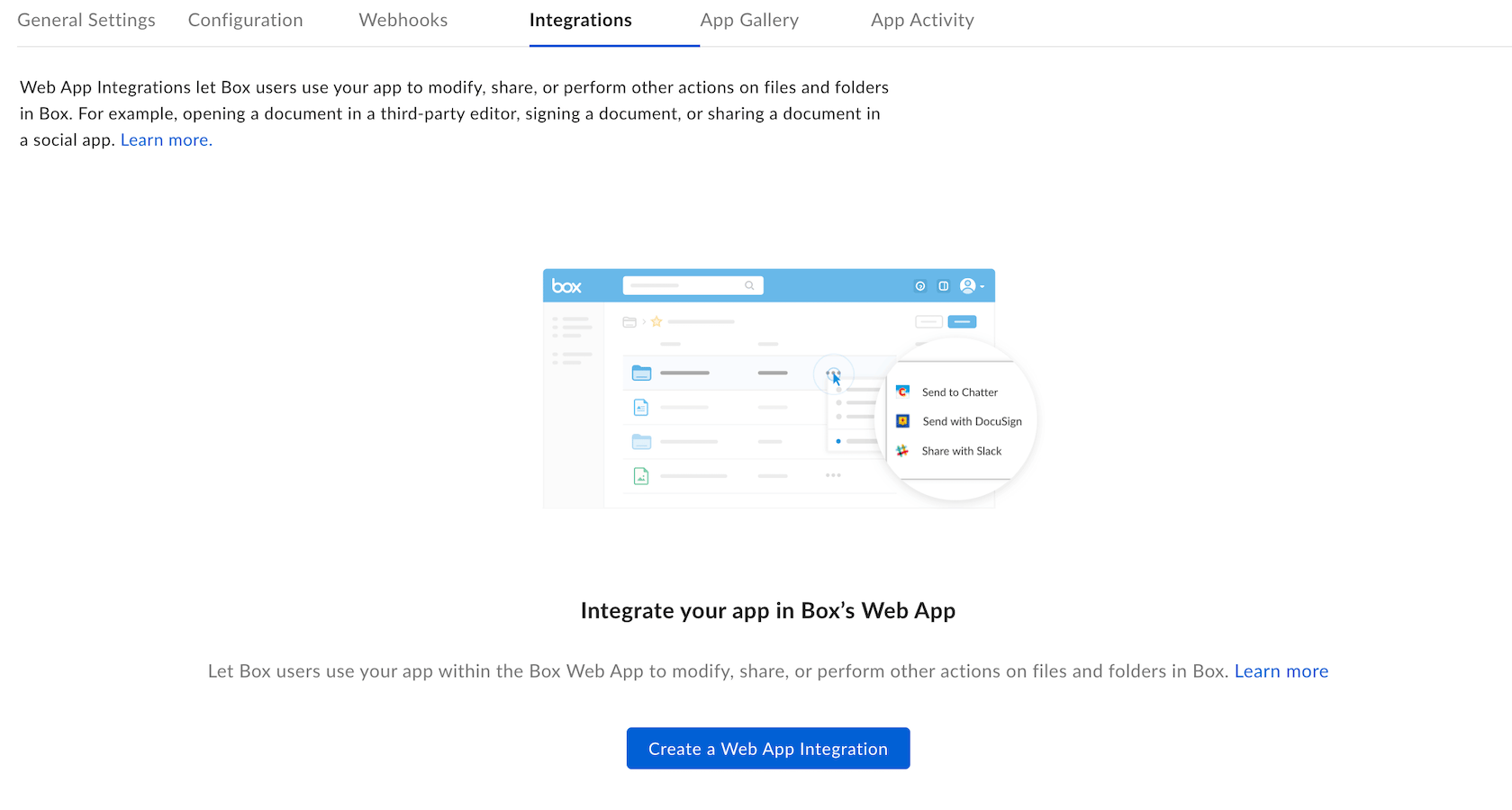
Configure Integration
To configure the integration, follow the guidance below for each value.App Info
Callback Configuration
Callback Parameters
The Callback Parameters section configures the parameters that Box sends to the callback URL when a user accepts a confirmation prompt. If this setting is not configured, Box does not send any parameters to the callback URL. To add a parameter, select the Method (GET or POST), specify the Parameter name and add a Parameter value. For example: GET -userid - #user_id#.
The following parameter values are available.
Integration Status
- Development: The integration is visible and available only to application collaborators listed under the General Settings tab. This option is best used when the application is still in development and undergoing testing.
- Online: The integration is visible and available to all Box users. This option is best used when development is complete and the application is ready to publish in the Integrations.
- Maintenance: The integration is visible and available only to application collaborators listed under the General Settings tab. This option is best used after the integration is published in the Integrations, but needs to perform maintenance updates or troubleshoot issues. Use this option to temporarily take the integration offline for everyone except the application’s collaborators.
Example Use Cases of Box Integrations
When a user chooses a Popup Integration, Box sends a callback request to the primary callback URL. It sends the callback parameters have been configured to the server. In some cases, Box may make a second request if the client cannot get all the data it needs from the first request. The following example does not require a client callback URL:- The Popup Integration performs a REST call using a
download_file_urlcallback parameter. - The user clicks OK in the confirmation prompt to accept the popup.
- Box sends a request to the following URL (the primary callback URL plus the callback parameter):
http://www.doceditor.com/service?apikey=abc&file=&redirect=. - The response from the callback URL displays a user interface to the user who made the request. The popup has all the information needed to continue the action and an additional client callback is not needed.
- The Popup Integration performs a REST call using a file-callback parameter.
- The user clicks OK in the confirmation prompt to accept the popup.
- The popup displays a page where Box sends a POST request with the contents of a file, along with the callback parameters to the remote server.
- Box receives the response from the remote server and directs the client to POST the response to the client callback URL. The server identified by the URL interprets the response and redirects the user with the correct session ID.
Client-callback URL Request Format
The POST request that Box sends to the client callback URL takes the response from the primary callback URL and forwards it to the same URL along with the same data as the original callback.
The response to the client-callback request is an HTTP status 302, redirecting
the user to the correct URL or to the HTML for a UI.
Most often the URL points to a separate API or custom script developed for Web
App Integrations, which parses the result of the primary callback URL.