> ## Documentation Index
> Fetch the complete documentation index at: https://developer.box.com/llms.txt
> Use this file to discover all available pages before exploring further.
# User types
> Learn which Box user type your app authenticates as, and how Managed Users, Service Accounts, and App Users differ.
export const SignupCTA = ({children}) => {
return
;
};
export const Link = ({href, children, className, ...props}) => {
const localizedHref = localizeLink(href);
return
{children}
;
};
The type of user your application authenticates as determines what content it can access and what actions it can take. Which user type you get depends on the application type you create and the authentication method you choose.
## User types at a glance
| User type | Has login credentials? | How it's created | Visible in Admin Console? | Best for |
| --------------------------------------- | ---------------------- | ------------------------------------------------------------------------------------------------------------------- | -------------------------------------------------------- | ------------------------------------------------------- |
| [**Managed User**](#managed-users) | Yes | Provisioned by enterprise | Yes | Employees with licensed Box accounts |
| [**External User**](#external-users) | Yes | Has an existing Box account (personal or another enterprise) | Yes, **External Users** tab (**External Users** filter) | Cross-enterprise or free-account collaboration |
| [**Unmanaged User**](#unmanaged-users) | Yes | Self-provisioned using a managed domain email | Yes, **External Users** tab (**Unmanaged Users** filter) | Domain users outside enterprise control |
| [**Service Account**](#service-account) | No (API only) | Auto-generated when a server-auth app is authorized | Content Manager only | Server-to-server integrations, content owned by the app |
| [**App User**](#app-user) | No (API only) | Created by a Service Account using the API | Yes (Users & Groups + Content Manager) | Per-user content isolation without Box accounts |
## Admin and Co-Admin roles
Admin and Co-Admin are roles that can be assigned to Managed Users, not separate user types. A user must first be a Managed User before they can be given either role.
Managed Users with the Admin or Co-Admin role can manage the Box enterprise through the Admin Console. They can perform actions unavailable to other users, such as managing security policies, running reports, and configuring integrations.
Some applications require Admin-level permissions to operate. For example, a security application that monitors enterprise events needs an Admin or a Co-Admin with reporting permissions.
## Managed Users
Managed Users belong to your enterprise and consume a standard Box license. Each enterprise has a unique enterprise ID, and all Managed Users share that ID. They typically share the same email domain.
## External Users
External Users are collaborators from outside your organization — Box users whose accounts are not created from within your Admin Console and whose email addresses are not associated with your managed domain. They can belong to a different enterprise, or they can have a free personal Box account with no enterprise affiliation.
Admins cannot manage External Users' account settings or the content they own, but they can manage collaborations — including granting or revoking access to your enterprise's content. External Users appear in the Admin Console under **Users & Groups** > **External Users**. An Admin can invite them to become Managed Users in your organization, provided they are not already part of another Box enterprise.
## Unmanaged Users
Unmanaged Users are Box users who:
* Have unlicensed personal Box accounts acquired independently of an Admin or Co-Admin, and that do not belong to your Box organization
* Use email addresses from your domain or verified domains (domains owned or controlled by your organization)
Unmanaged Users appear in the Admin Console under **Users & Groups** > **External Users** when you select the **Unmanaged Users** filter. Admins can identify and convert them to Managed Users to bring them under organizational control.
## Service Account
A Service Account is a programmatic user that represents your application in the Box enterprise. It authenticates server-to-server without login credentials, which makes it ideal for backend integrations and automated workflows.
```mermaid theme={null}
flowchart TB
subgraph BoxEnterprise["Box Enterprise"]
request["Developer sends app authorization request"]
admin(["Box Primary Admin*"])
managed(["Managed User"])
console["Developer Console"]
app1[("Application 1")]
app2[("Application 2")]
app3[("Application 3")]
appn[("Application n")]
auth{"Authorized by Admin"}
notAuth{"Not Authorized"}
service(["Service Account**"])
appUser1(["App User 1"])
appUserN(["App User n"])
request -->|API Key| admin
managed --> console
console --> app1
console --> app2
console --> app3
console --> appn
app1 --> auth
app2 --> notAuth
auth --> service
service --> appUser1
service --> appUserN
end
```
\* One per enterprise; can manage enterprise settings and authorize applications. \*\* One per authorized application; can own content and processes, and can create and manage app users.
### When to use
* **Content migration**: Move content between on-premises systems and the cloud
* **Event monitoring**: Watch enterprise events for compliance or to trigger workflows
* **Content distribution**: Upload and share files with users regardless of their authentication status
* **System integrations**: Connect on-premises systems and devices to Box
* **Content archiving**: Store infrequently accessed content
### Creation
A Service Account is **automatically generated** when an Admin authorizes your JWT or CCG application in the Admin Console. You don't create it manually.
Box assigns the Service Account an email address in the format:
`AutomationUser_AppServiceID_RandomString@boxdevedition.com`
For example: `AutomationUser_123456_6jCo6Pqwo@boxdevedition.com`. The number between the underscores is the **Service ID**, which matches the ID in your app's Developer Console URL (for example, `https://example.app.box.com/developers/console/app/123456`).
You can find the Service Account email in the **App Details** tab of your app in the Developer Console.
If you attempt API calls with a Service Account token before the app is authorized, you receive an `unauthorized_client` error: `"This app is not authorized by the enterprise"`.
### Viewing content
Only **Primary Admins** can view a Service Account's content:
1. Open the Content Manager in the Admin Console.
2. Search for the application name.
3. Right-click the result and select **Log in to user's account**.
Service Accounts are **not** visible in the **Users & Groups** tab. They only appear in the Content Manager.
Co-Admins can't log in as a Service Account. This mirrors how Co-Admins can't manage each other.
### Permissions and collaboration
The API endpoints a Service Account can call are determined by the scopes configured in the Developer Console. With the right scopes, a Service Account can perform Admin-level actions.
Because a Service Account can have elevated permissions, JWT and CCG applications require explicit Admin approval before they can be used in an enterprise.
A Service Account has its own folder tree, which starts empty. To give it access to existing content:
* **By email**: Invite the Service Account using its assigned email address, just as you would invite any other collaborator.
* **By API**: Use the create collaboration endpoint with the Service Account's user ID (returned by the get current user endpoint).
You can assign a Service Account an email alias to make collaboration invitations easier to remember.
By default, Service Accounts receive 10 GB of storage based on the **New User Default Settings** in the Admin Console. To change this, call the update user endpoint with the `space_amount` parameter.
## App User
An App User is a programmatic user that your Service Account creates through the API. Like Service Accounts, App Users don't have login credentials and can only interact with Box through your application. Each App User gets their own folder tree, which gives you per-user content isolation.
App Users are tied to the application that created them and can't be transferred to another application.
### When to use
* **Customer portals**: Give clients or patients a place to access and store sensitive documents without needing a Box account
* **Vendor portals**: Distribute content like price lists, contracts, and marketing materials to partners, organized by vendor tier
* **Branded applications**: Build customer-facing features with per-user permissions, auditing, and reporting — especially valuable for regulated industries like financial services and healthcare
* **Identity mapping**: Map users from your own identity provider (like Auth0 or Okta) to individual Box user accounts
### Creation
**Prerequisites**: You need a JWT or CCG application that has been authorized in the Admin Console, which gives you a Service Account.
To create an App User, use the Service Account's access token to call the create user endpoint. Set the `is_platform_access_only` body parameter to `true` — otherwise, a Managed User is created instead.
Box assigns each App User an email address in the format:
`AppUser_AppServiceID_RandomString@boxdevedition.com`
For step-by-step instructions and code samples, see Create an App User.
### Viewing content
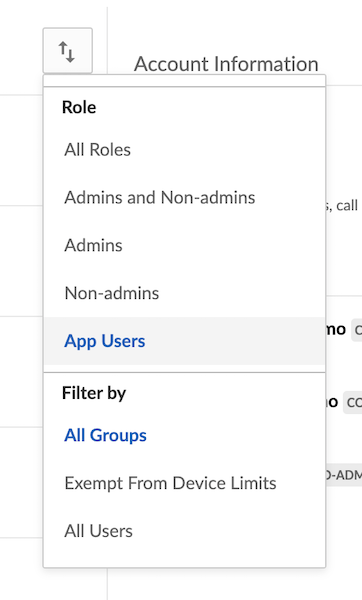
App Users are visible in two places in the Admin Console:
1. **Users & Groups** tab: Use the view options button, then filter by **Role > App Users**.
2. **Content Manager**: Search for the App User by name or email to browse their folder tree.
### Permissions and collaboration
App Users **can't** see the Service Account's folder tree or any other content unless you explicitly add them as a collaborator.
Each App User has their own folder tree, which starts empty. To give an App User access to content:
* **By email**: Invite the App User using their assigned email address.
* **By API**: Use the create collaboration endpoint with the App User's ID and an access token for a user who already has access to the target content.
## Service Account vs. App User
Use this decision guide to pick the right approach for your application:
| Question | If yes... |
| ---------------------------------------------------------------------------------- | ----------------------------------------------- |
| Does your app need to own and manage content without tying it to individual users? | Use a **Service Account** as the content owner. |
| Do you need per-user content isolation (each user has their own files)? | Create an **App User** for each user. |
| Are your users transient, but the content needs to persist? | Use a **Service Account** to own the content. |
| Do you want to map users from your own identity provider to Box? | Create an **App User** for each identity. |
| Is this a system-to-system integration with no end-user interaction? | Use the **Service Account** directly. |
## As-User
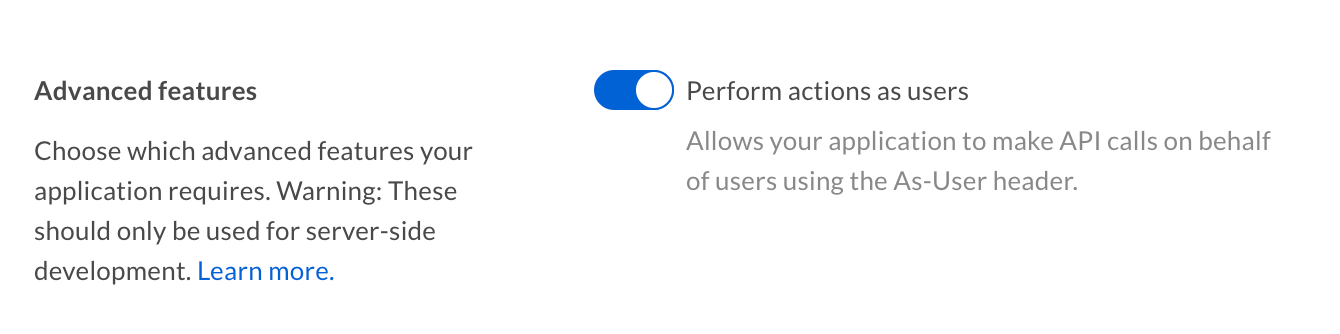
If you use OAuth 2.0, JWT, or CCG authentication, you can make `as-user` calls to act on behalf of another user. Even though your application originally authenticated as yourself or as a Service Account, subsequent calls can impersonate a different user.
This is useful for automating administrative tasks like folder reorganization or employee provisioning. To enable `as-user` calls, turn on the appropriate scope in the Developer Console.
## Next steps
* Create an App User
* Select an authentication method
* Create your first application
 2. **Content Manager**: Search for the App User by name or email to browse their folder tree.
### Permissions and collaboration
App Users **can't** see the Service Account's folder tree or any other content unless you explicitly add them as a collaborator.
Each App User has their own folder tree, which starts empty. To give an App User access to content:
* **By email**: Invite the App User using their assigned email address.
* **By API**: Use the create collaboration endpoint with the App User's ID and an access token for a user who already has access to the target content.
## Service Account vs. App User
Use this decision guide to pick the right approach for your application:
| Question | If yes... |
| ---------------------------------------------------------------------------------- | ----------------------------------------------- |
| Does your app need to own and manage content without tying it to individual users? | Use a **Service Account** as the content owner. |
| Do you need per-user content isolation (each user has their own files)? | Create an **App User** for each user. |
| Are your users transient, but the content needs to persist? | Use a **Service Account** to own the content. |
| Do you want to map users from your own identity provider to Box? | Create an **App User** for each identity. |
| Is this a system-to-system integration with no end-user interaction? | Use the **Service Account** directly. |
## As-User
If you use OAuth 2.0, JWT, or CCG authentication, you can make `as-user` calls to act on behalf of another user. Even though your application originally authenticated as yourself or as a Service Account, subsequent calls can impersonate a different user.
This is useful for automating administrative tasks like folder reorganization or employee provisioning. To enable `as-user` calls, turn on the appropriate scope in the Developer Console.
2. **Content Manager**: Search for the App User by name or email to browse their folder tree.
### Permissions and collaboration
App Users **can't** see the Service Account's folder tree or any other content unless you explicitly add them as a collaborator.
Each App User has their own folder tree, which starts empty. To give an App User access to content:
* **By email**: Invite the App User using their assigned email address.
* **By API**: Use the create collaboration endpoint with the App User's ID and an access token for a user who already has access to the target content.
## Service Account vs. App User
Use this decision guide to pick the right approach for your application:
| Question | If yes... |
| ---------------------------------------------------------------------------------- | ----------------------------------------------- |
| Does your app need to own and manage content without tying it to individual users? | Use a **Service Account** as the content owner. |
| Do you need per-user content isolation (each user has their own files)? | Create an **App User** for each user. |
| Are your users transient, but the content needs to persist? | Use a **Service Account** to own the content. |
| Do you want to map users from your own identity provider to Box? | Create an **App User** for each identity. |
| Is this a system-to-system integration with no end-user interaction? | Use the **Service Account** directly. |
## As-User
If you use OAuth 2.0, JWT, or CCG authentication, you can make `as-user` calls to act on behalf of another user. Even though your application originally authenticated as yourself or as a Service Account, subsequent calls can impersonate a different user.
This is useful for automating administrative tasks like folder reorganization or employee provisioning. To enable `as-user` calls, turn on the appropriate scope in the Developer Console.
 ## Next steps
* Create an App User
* Select an authentication method
* Create your first application
## Next steps
* Create an App User
* Select an authentication method
* Create your first application