> ## Documentation Index
> Fetch the complete documentation index at: https://developer.box.com/llms.txt
> Use this file to discover all available pages before exploring further.
# Platform App Approval
export const Link = ({href, children, className, ...props}) => {
const localizedHref = localizeLink(href);
return
{children}
;
};
Server authentication applications using JWT or
Client Credentials Grant must be authorized before use. For free developer accounts, authorization happens automatically when the app is created. For enterprise accounts, a Box Admin must approve the application.
Unpublished applications using OAuth 2.0 authentication may
require enablement by a Box Admin or Co-Admin if they are inactive by default.
A Box Admin or Co-Admin needs an application's Client ID in order to properly
authorize or enable it in the Admin Console.
Apps created by free developer (Individual) accounts are authorized
automatically. You can use My Platform Apps view to quickly look up
the authorization and enablement status of your application.
## One-Click Authorization
JWT and CCG authentication apps can be authorized directly from the
**Configuration** tab in the [Developer Console][devconsole]. This is
a convenient alternative to the methods described below.
### As an Admin or Co-Admin
The authorization process depends on your account type.
**Free developer accounts**: Your app is automatically authorized when you create it. If authorization did not complete, the **Configuration** tab displays a prompt to authorize the app directly.
**Enterprise developers**: After you create the app, the **Configuration** tab prompts you to submit for admin approval.
**Enterprise admins and co-admins**: After you create the app, the **Configuration** tab lets you authorize the app directly.
### As a developer
If you are not a Box Admin or Co-Admin, the Configuration tab displays:
**Submit app for authorization for access to the Enterprise.** Click
**Submit** to send the request. Your admin or co-admin receives an email
notification, and you are notified by email once the request is
approved or denied.
## Approval Notifications
### User authentication apps
A semi-automated process to submit an app approval is available in the Developer
Console for user authentication applications.
Navigate to the **Enablement** tab for your application in the [Developer Console][devconsole].
Submitting the application for approval sends an email to your
enterprise's Primary Admin to approve the application.
When a Box Admin or Co-Admin approves or declines your request,
you receieve an email with the decision.
More information on this process is available in our [support article on app authorization][app-auth].
## Manual Approval
The following steps provide instructions on how to manually approve the
application.
### As a developer
1. Navigate to the **Configuration** tab for your application in the [Developer Console][devconsole].
2. Scroll down to the OAuth 2.0 Credentials section and copy the **Client ID** value to provide to a Box Admin or Co-Admin.
Alternatively, hover over the application in the
My Platform Apps view to look up the **ClientID** and then
copy it using the `copy` button.
**Finding a Box Admin**
If you don't know your enterprise Admin, go to your Box [Account
Settings][settings] page and scroll to the bottom. If an admin contact is set
you should see their contact information under "Admin Contact".
### As an Admin
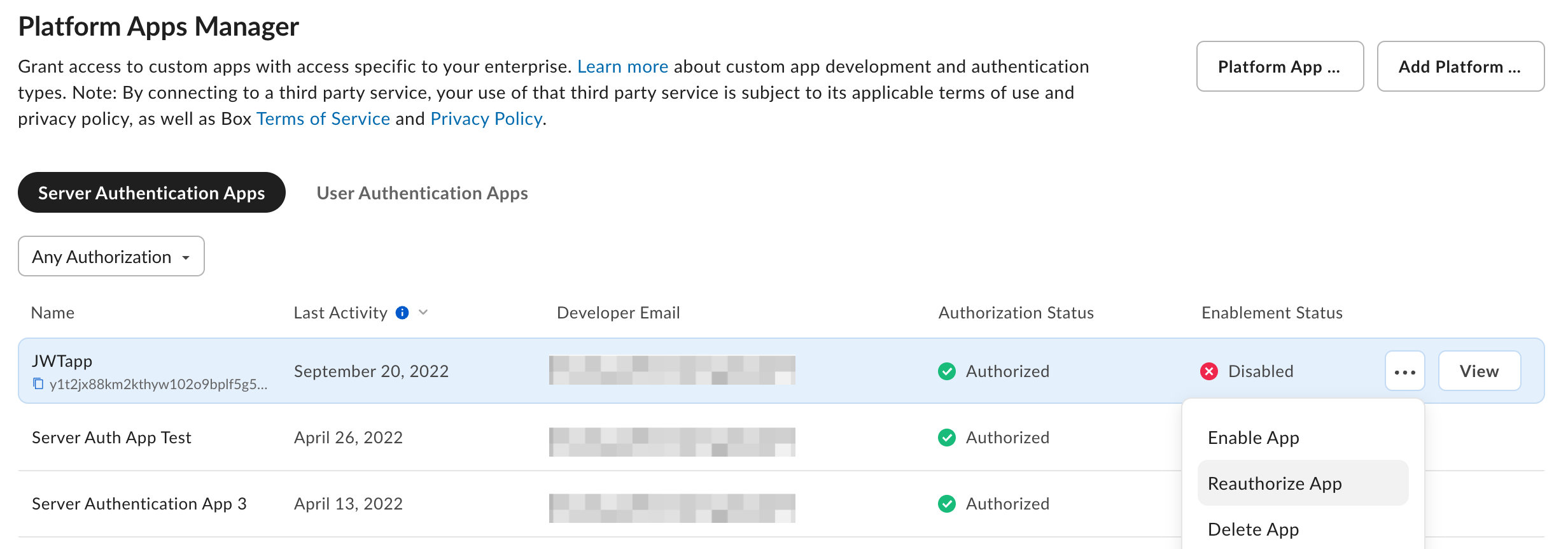
1. Navigate to the [Admin Console][adminconsole] and select the **Platform** tab from the left navigation panel.
2. Click the **Platform Apps** tab at the top of your screen.
3. For both Server and User Authentication Apps screens, click the **Add** button in the top right corner to add a new app.
4. Alternatively, you can hover on the row of your desired app and select **...** to authorize and enable apps.
In the popup that appears, enter the client ID for the application that the
developer collected from the **Configuration** tab of the
[Developer Console][devconsole].
## Authorized app limit
When a new enterprise is created, it can authorize up to 10,000 custom apps.
If your enterprise needs to authorize more than 10,000 custom apps, contact
[Box Support](https://support.box.com/hc/en-us/requests/new?\&referrerPageUrl=) to request an increase.
## Re-authorization on changes
When an application's scopes or access level change, the application must be re-authorized for the changes to take effect.
**Free developer accounts**: When you save changes, the app is automatically re-authorized. If re-authorization did not complete, the **Configuration** tab displays a prompt to re-authorize the app.
**Enterprise developers**: After saving changes, submit the app for re-authorization by your Box Admin. The **Configuration** tab displays a prompt if your app's settings differ from the last authorized version.
**Enterprise admins and co-admins**: After saving changes, the **Configuration** tab prompts you to re-authorize the app directly.
Admins can also re-authorize applications by selecting **Platform** from the sidebar of the **Admin Console**, then by clicking the menu next to the application name and selecting **Reauthorize App**.
[devconsole]: https://app.box.com/developers/console
{/* i18n-enable localize-links */}
[settings]: https://app.box.com/account
[adminconsole]: https://app.box.com/master/settings/custom
[app-token]: /guides/authentication/app-token
[app-auth]: https://support.box.com/hc/en-us/articles/360043697014-Authorizing-Apps-in-the-Box-App-Approval-Process
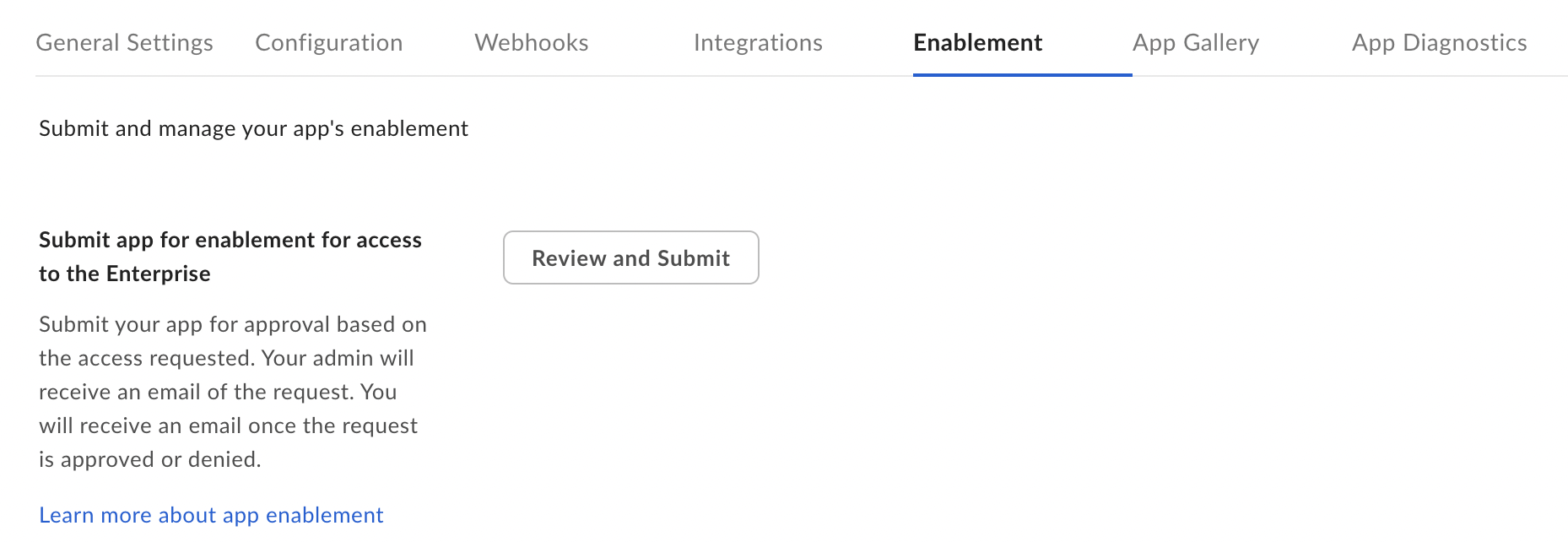 Submitting the application for approval sends an email to your
enterprise's Primary Admin to approve the application.
When a Box Admin or Co-Admin approves or declines your request,
you receieve an email with the decision.
More information on this process is available in our [support article on app authorization][app-auth].
## Manual Approval
The following steps provide instructions on how to manually approve the
application.
### As a developer
1. Navigate to the **Configuration** tab for your application in the [Developer Console][devconsole].
2. Scroll down to the OAuth 2.0 Credentials section and copy the **Client ID** value to provide to a Box Admin or Co-Admin.
Alternatively, hover over the application in the
My Platform Apps view to look up the **ClientID** and then
copy it using the `copy` button.
Submitting the application for approval sends an email to your
enterprise's Primary Admin to approve the application.
When a Box Admin or Co-Admin approves or declines your request,
you receieve an email with the decision.
More information on this process is available in our [support article on app authorization][app-auth].
## Manual Approval
The following steps provide instructions on how to manually approve the
application.
### As a developer
1. Navigate to the **Configuration** tab for your application in the [Developer Console][devconsole].
2. Scroll down to the OAuth 2.0 Credentials section and copy the **Client ID** value to provide to a Box Admin or Co-Admin.
Alternatively, hover over the application in the
My Platform Apps view to look up the **ClientID** and then
copy it using the `copy` button.
 [devconsole]: https://app.box.com/developers/console
{/* i18n-enable localize-links */}
[settings]: https://app.box.com/account
[adminconsole]: https://app.box.com/master/settings/custom
[app-token]: /guides/authentication/app-token
[app-auth]: https://support.box.com/hc/en-us/articles/360043697014-Authorizing-Apps-in-the-Box-App-Approval-Process
[devconsole]: https://app.box.com/developers/console
{/* i18n-enable localize-links */}
[settings]: https://app.box.com/account
[adminconsole]: https://app.box.com/master/settings/custom
[app-token]: /guides/authentication/app-token
[app-auth]: https://support.box.com/hc/en-us/articles/360043697014-Authorizing-Apps-in-the-Box-App-Approval-Process